STICKDEATHINFINITY

Studio tour

One toolbar.
Thirty tools.
Zero menus to hunt.

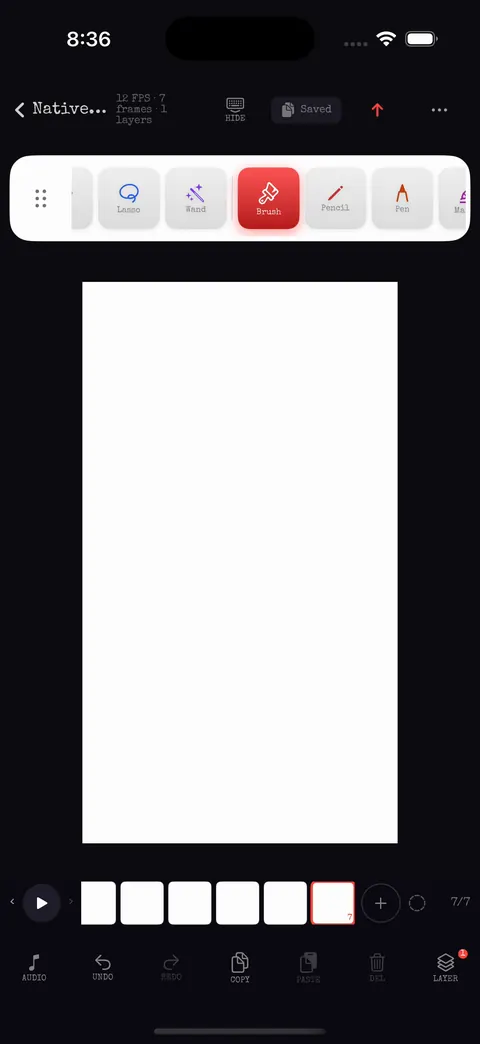
Studio keeps the whole workflow on one screen: a white floating toolbar that snaps to either edge, a single options popup for the tool you hold, a frame strip underneath and panels for layers, sound, pictures and export. Every capture on this page is a frame from the automated UI journeys that run on the iPhone simulator (source 39f29cb, run 38516791084, 2026-10-14, unless labelled otherwise).

Start

A project in three taps.

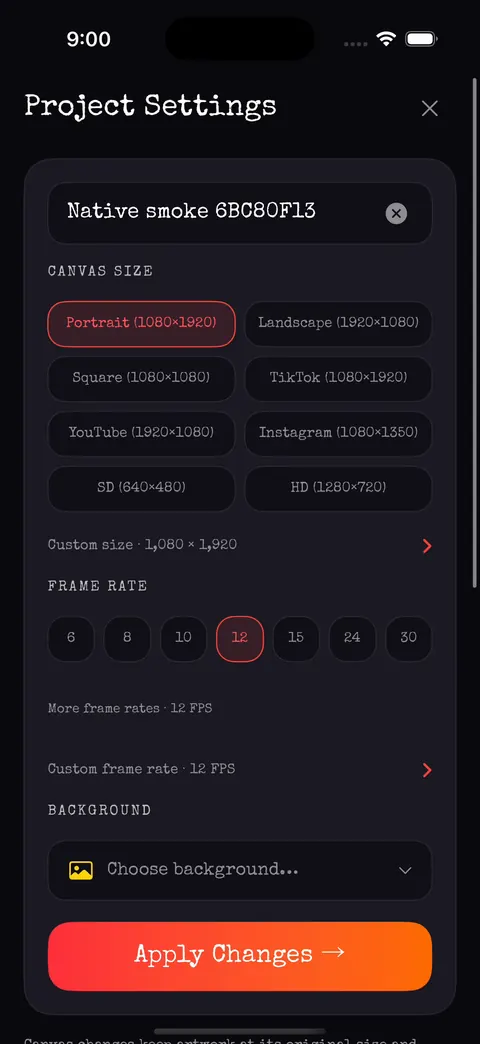
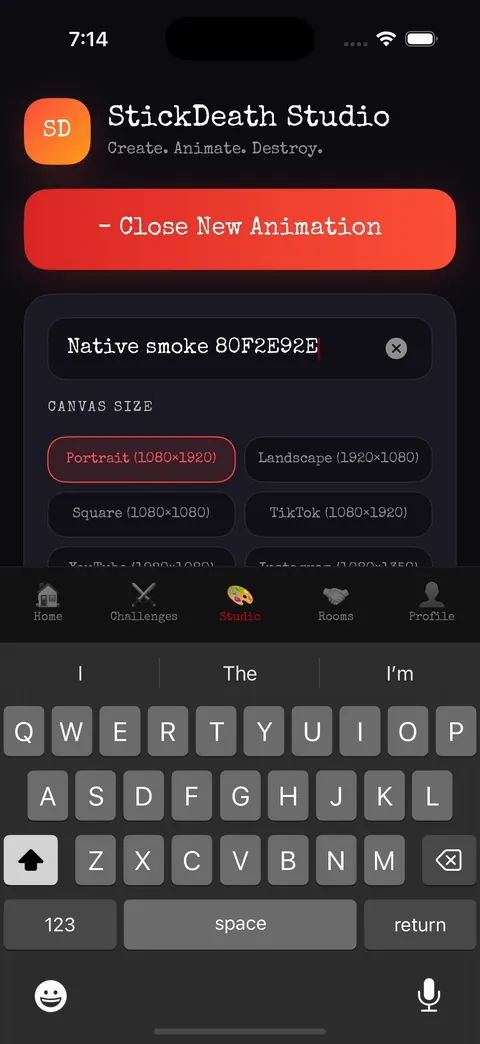
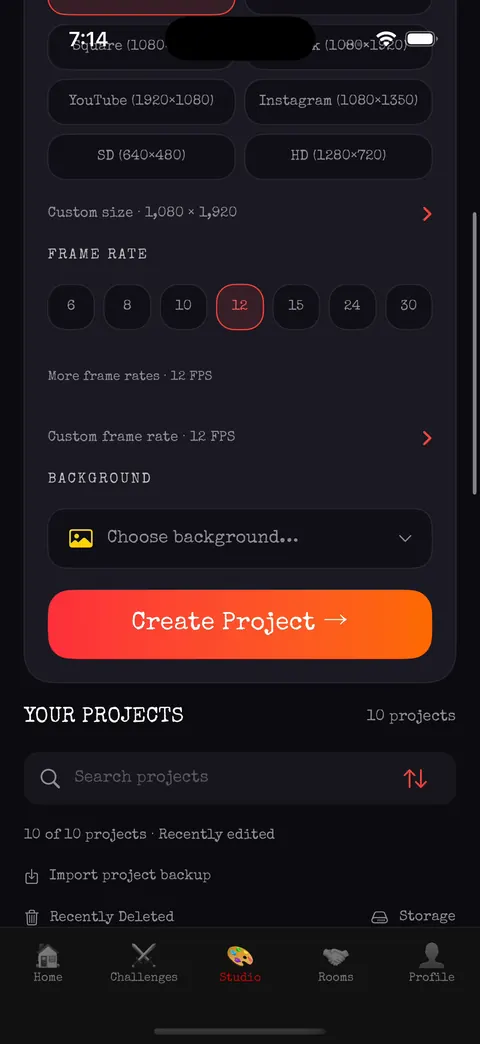
New Animation asks for a name, a canvas and a frame rate, then opens the canvas. Eight canvas presets cover portrait, landscape, square and the common social sizes, or type a custom size up to the device limits. Frame-rate presets run from 6 to 30 fps with a custom option.

  • Presets: Portrait 1080×1920, Landscape 1920×1080, Square 1080×1080, TikTok, YouTube, Instagram, SD 640×480, HD 1280×720.
  • Frame rates 6, 8, 10, 12, 15, 24, 30 or custom.
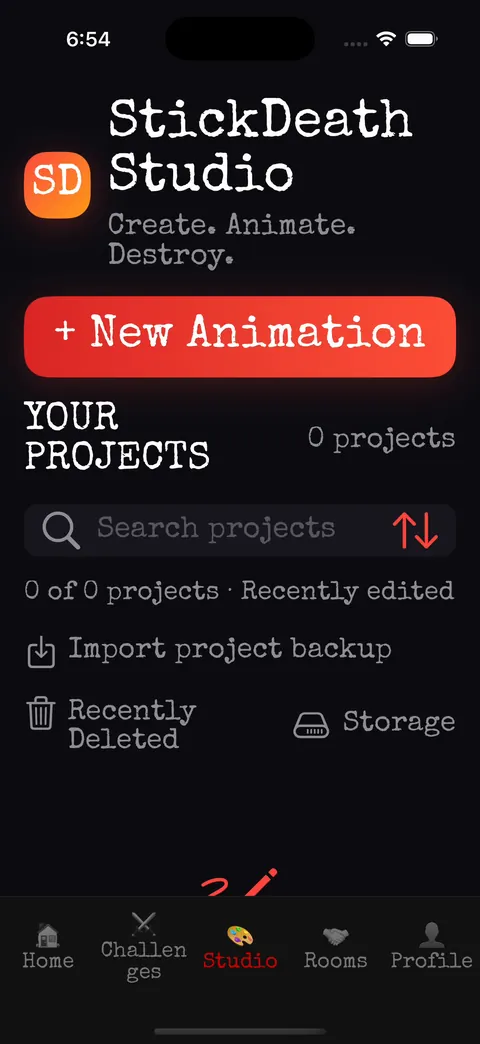
  • Background library, Recently Deleted with recovery, storage view and project backups you can import from Files.
  • Projects stay on the device. Opening or saving never uploads anything.
  • New Animation card with the project name field, eight canvas-size presets and the keyboard open
    New AnimationName, canvas presets, custom size
  • Frame-rate presets from 6 to 30, custom frame rate, background chooser and the Create Project button
    Frame rate and backgroundThen Create Project

Tools

The toolbar catalogue.

Thirty tools from the current source, grouped the way the toolbar groups them. Tap a tool twice to open its options popup; drag the toolbar's handle to dock it on the other side.

  • PenClean ink, pressure aware
  • PencilSoft graphite line
  • MarkerChisel nib, flat ink
  • Brush13 families, see below
  • CrayonWax grain
  • EraserHard or soft, strength
  • FillBucket with tolerance
  • EyedropperPoint or area sampling
  • LineStraight segments
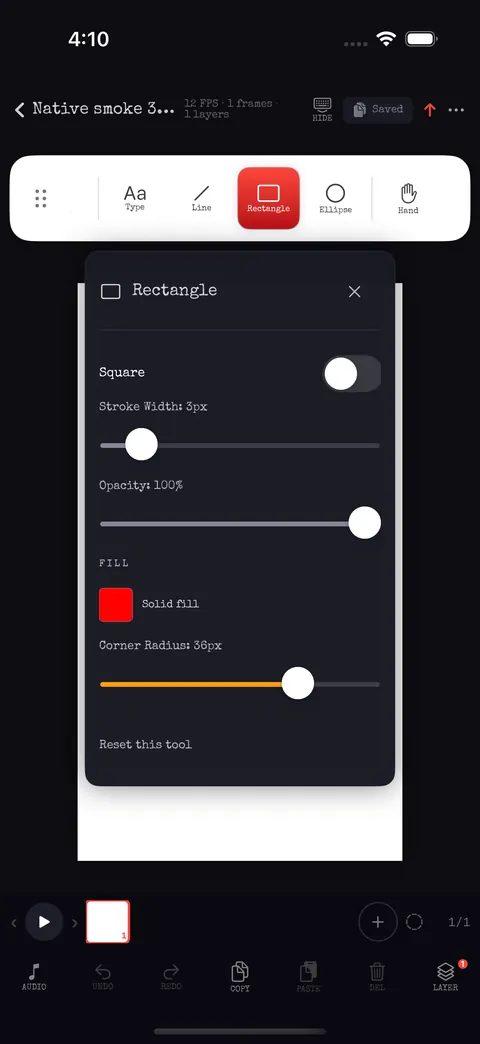
  • RectangleStroke, fill, corner radius
  • CircleEllipses and rings
  • TextEditable text objects
  • LassoFreehand, rectangle, polygon
  • WandSelect by colour region
  • ArrowPointers for notes
  • ImagePlace and transform pictures
  • RulerHorizontal, vertical, 45°, lock
  • GradientTwo-colour brush ramps
  • BlurSoften pixels
  • AirbrushSpray build-up
  • WatercolorWet edges and bloom
  • NeonGlowing core and halo
  • CalligraphyAngled nib
  • SmudgePush pixels around
  • SharpenCrisp detail
  • DodgeLighten with strength
  • BurnDarken with strength
  • MoveWhole artwork or selection
  • HandPan the canvas
  • ZoomZoom and fit
Brush families

Thirteen ways to put down a mark.

Round, Stipple, Grain, Rough Pen, Calligraphy, Dip Pen, Halftone, Hatch Right, Hatch Left, Gradient, Airbrush, Watercolor and Neon. Each family has size, opacity, smoothing, texture and grain controls, pressure and tilt, and the brush library remembers your settings between launches.
Selections

Grab anything, then transform it.

Lasso drawings, images or both, with freehand, rectangle and polygon modes. Move, scale and rotate with canvas handles, flip, bring forward or send back, cut, copy and paste between frames and layers. Wand selects pixel regions of imported pictures; marquee lifts just part of an image.

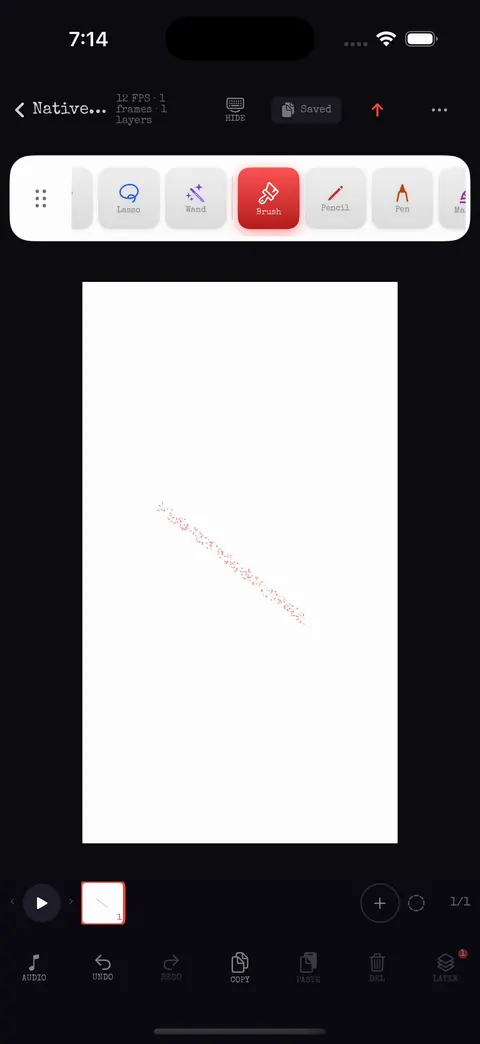
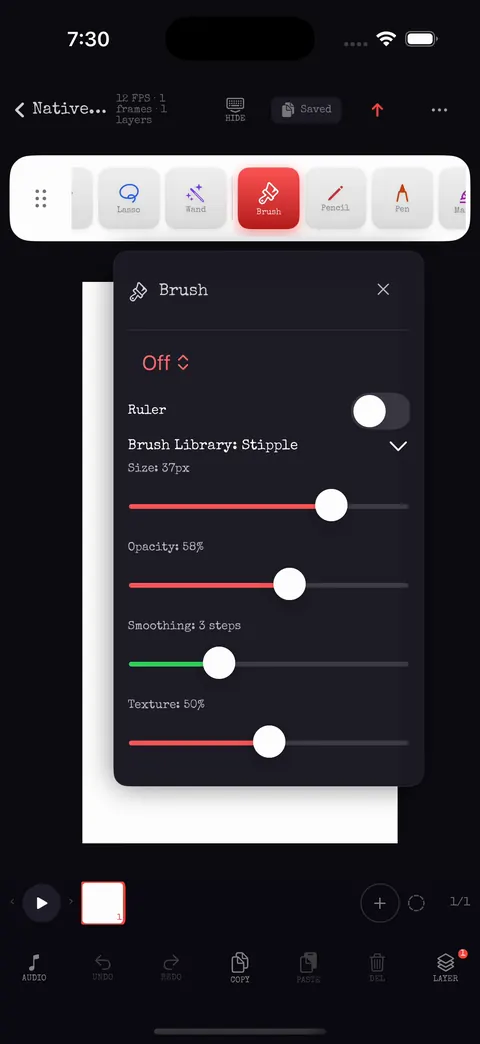
  • Brush options popup with ruler, brush library family picker, size, opacity, smoothing and texture sliders
    Brush optionsFamily, size, opacity, smoothing, texture
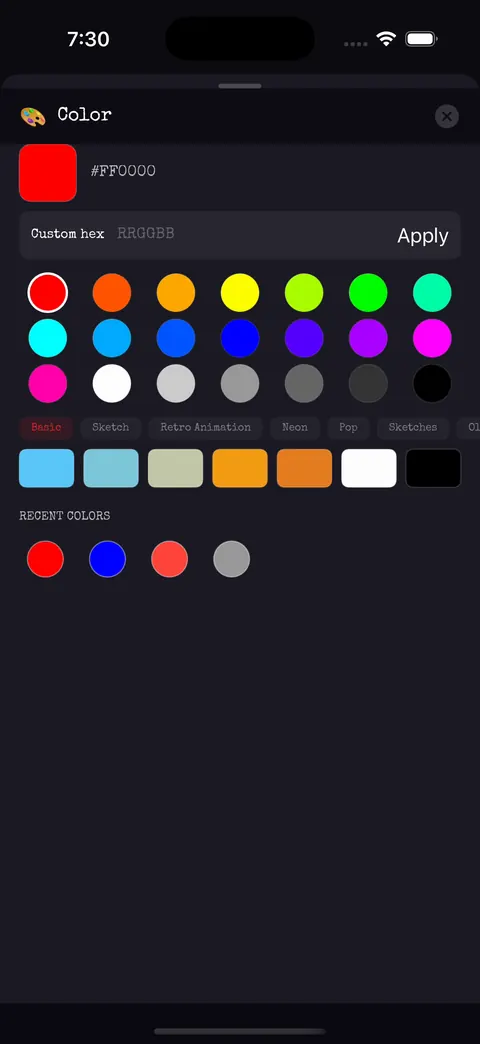
  • Colour popup with hex field, a grid of swatches and recent colours above a canvas with a blue line
    ColourHex, swatches, recent colours
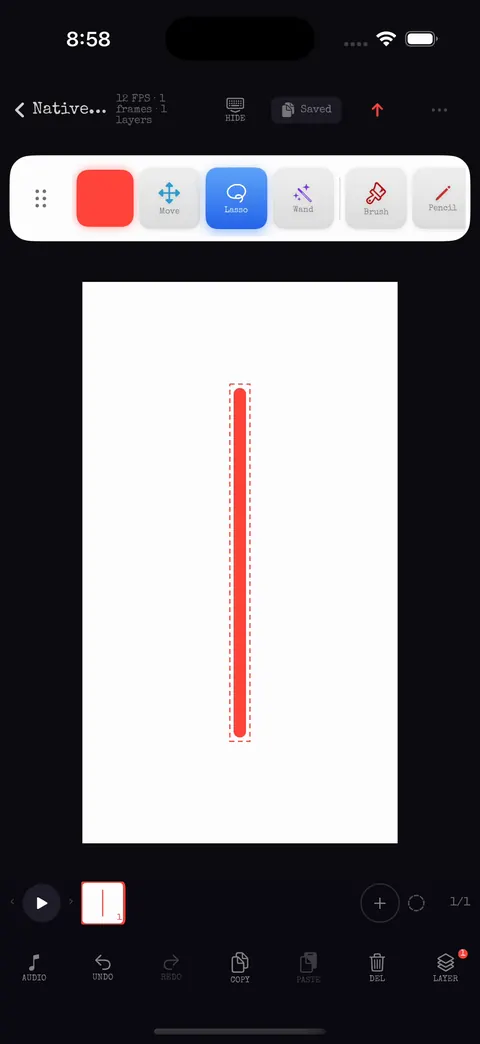
  • A red stroke selected on the canvas with a dotted outline and transform handles
    Selection handlesScale and rotate on the canvas
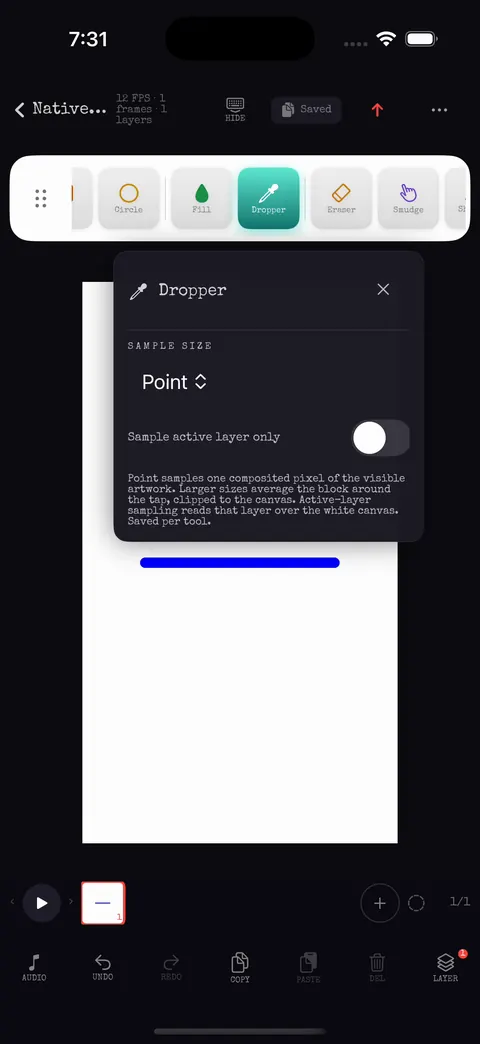
  • Dropper popup with point sample size and a sample-active-layer-only switch
    DropperPoint or area, active layer only
  • Brush, colour, dropperOpening the brush options, picking a colour, drawing a line and sampling it with the dropper. 40 s.
  • Layers panel over the canvas listing Layer 2 and Layer 1 with visibility and opacity
    Layers panelOrder, visibility, opacity
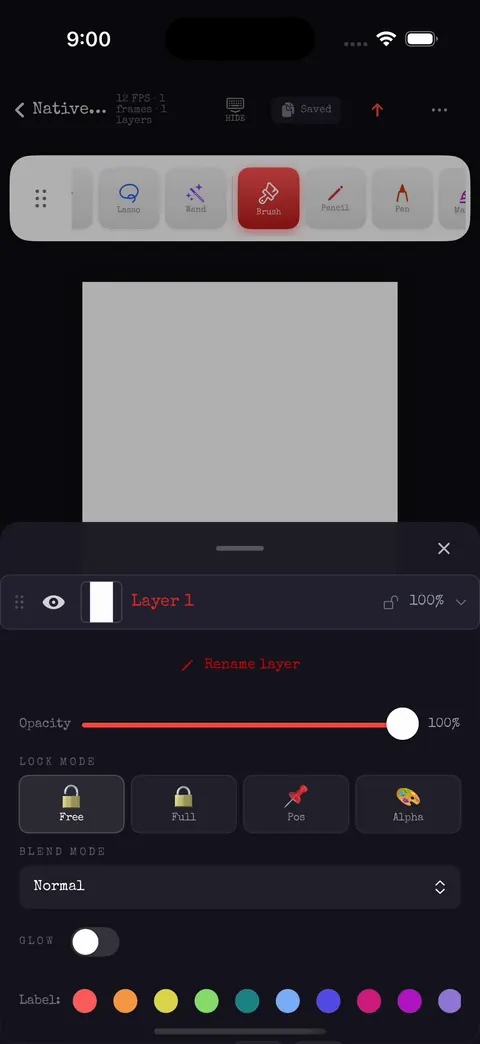
  • Layer options with opacity slider, lock modes Free, Full, Position and Alpha, blend mode Normal and a row of colour labels
    Layer optionsLock modes, blend, glow, labels

Layers

Keep the scene apart.

Layers carry order, visibility, opacity, a lock mode, a blend mode, an optional glow and a colour label. Lock modes protect work the way you expect: Position allows new marks only, Alpha keeps coverage so you can paint inside what is there.

  • Eighteen blend modes: Normal, Darken, Multiply, Color Burn, Linear Burn, Lighten, Screen, Color Dodge, Linear Dodge, Overlay, Soft Light, Hard Light, Difference, Exclusion, Hue, Saturation, Color, Luminosity.
  • Lock modes Free, Full, Position and Alpha; eleven colour labels.
  • Glow with colour, radius and strength; rename, duplicate, reorder by drag, delete with confirmation.
  • Every change is one Undo step, including drags and panel edits.

Frames & timing

Exposure, holds and tweens.

The frame strip under the canvas is the timeline. Each frame has an exposure in ticks of the project frame rate, so a drawing can hold for as long as you like without duplicates. Select a range to retime it, reverse it, duplicate it, or insert tweens between matching drawings with easing.

Illustration: red outlines are key drawings, striped frames are held exposures.

Onion skin

See the frame before.

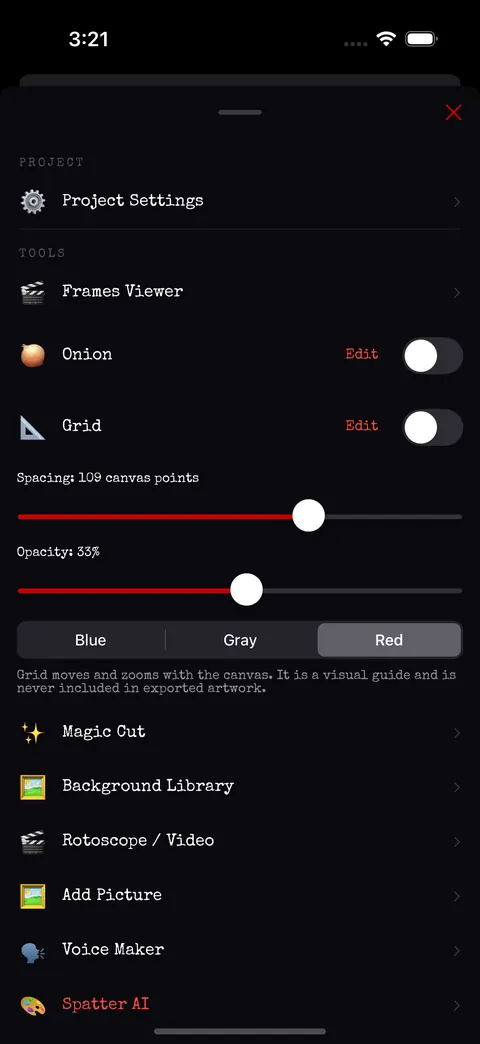
Onion skin and the grid are view settings, not edits: they never enter Undo history and they persist per project. Grid spacing, opacity and colour are adjustable.

Tweens

Let the app in-between.

Insert tweens between two frames whose drawings and image layers match. Easing options include a Hold pose. Unmatched endpoints are refused with a plain message instead of a broken result.

Frames viewer

Reorder without losing your place.

A dedicated viewer shows every frame as a card for long projects. Reorder, duplicate or delete from the context menu; the selection stays stable and survives a cold reopen.

  • Studio canvas with a strip of many frame thumbnails below it
    Frame stripScrub, select, hold
  • Grid options with spacing and opacity sliders and colour choices
    Grid optionsCapture from 960241f, 2026-10-12
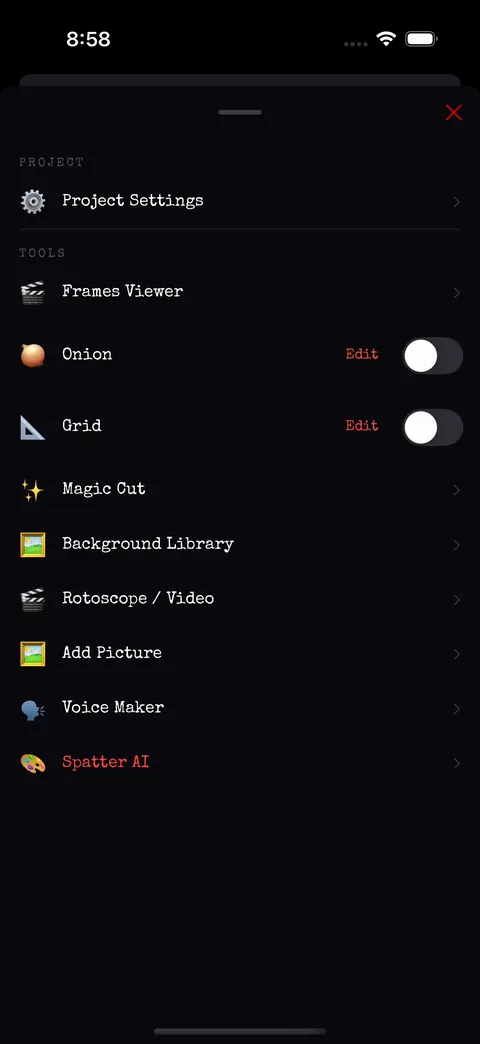
  • Studio menu listing Project Settings, Frames Viewer, Onion, Grid, Magic Cut, Background Library, Rotoscope and Video, Add Picture, Voice Maker and Spatter AI
    Studio menuPanels and view settings
  • Project Settings with name, canvas size presets, frame rate, background and an Apply Changes button
    Project settingsRename, resize, retime

Sound

Four tracks and a library.

The Audio Timeline sits under the canvas with four tracks. Place a sound from the bundled library, your Files, or a movie's soundtrack, then trim by dragging the edges, split, duplicate and move clips. Waveforms are measured from the real audio, not drawn.

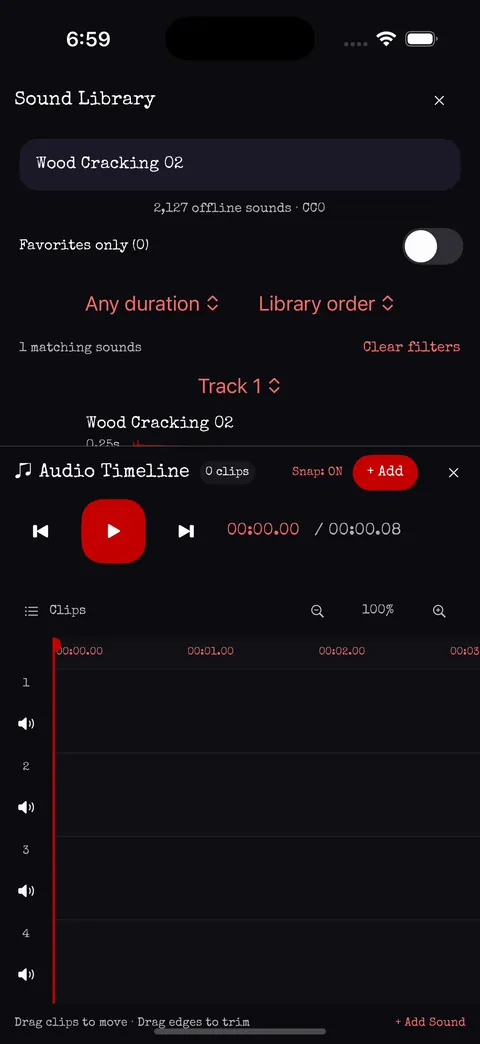
  • 2,127 CC0 sound effects bundled offline with tag search, favourites, duration and library-order filters, and preview playback.
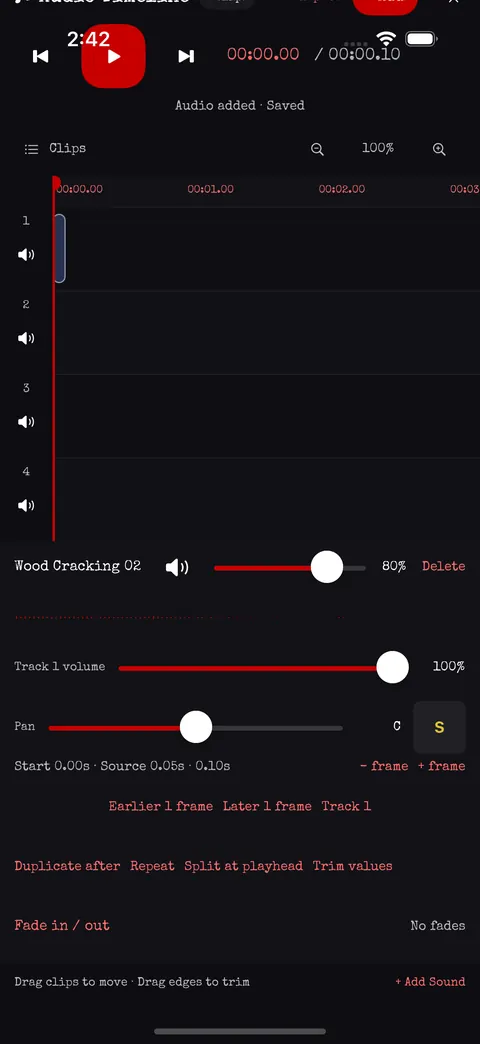
  • Clip gain and mute, track volume, mute, pan and solo; fade in and out with linear, equal-power, S-curve, exponential and logarithmic shapes.
  • Numeric trim, split at the playhead, duplicate; imported audio and its history are bounded to 32 MB.
  • Every library sound carries its creator credit into the exported movie's receipt.
  • Sound Library searched for Wood Creaking with duration and library-order filters above the audio timeline
    Library searchTags, favourites, filters
  • Audio timeline with a placed clip, its measured waveform, clip volume, track volume and pan sliders
    Clip and track controlsCapture from 960241f, 2026-10-12
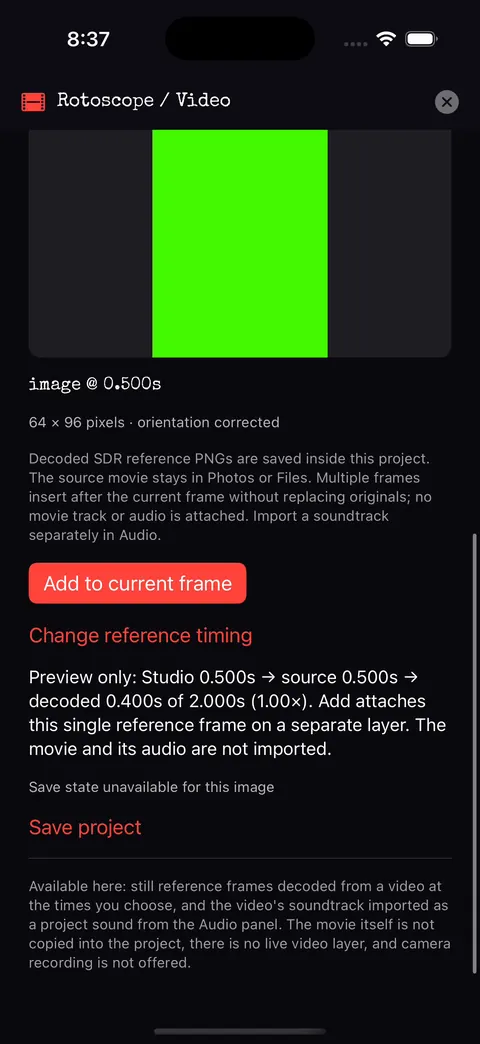
  • Rotoscope and Video panel showing a decoded reference frame, its timing and an Add to current frame button
    Rotoscope referenceOne still from a movie, on its own layer
  • Rectangle tool options with stroke width, opacity, solid fill colour and corner radius
    Shape optionsCapture from 960241f, 2026-10-12

Pictures & references

Bring in anything.

Add pictures from Photos, Files, the camera (a still only), or the licensed image library: 207 bundled pictures and six optional packs with 1,818 more, every one credited. Trace over a movie frame with the Rotoscope panel, which decodes a reference still at the timeline playhead.

  • Nondestructive crop, quarter turns, free rotation and flips; the original bytes are kept.
  • Pixel effects on the active layer with Undo: blur, sharpen, smudge, dodge, burn, background filters, alpha fill.
  • Magic Cut and wand regions to lift a subject from its background.
  • Camera recording and whole-video timeline import are not available yet; the app says so.
  • Rotoscope referenceChoosing a video from the picker, decoding one reference still at the playhead and adding it to the current frame. 22 s.

Spatter

Advice, then action.

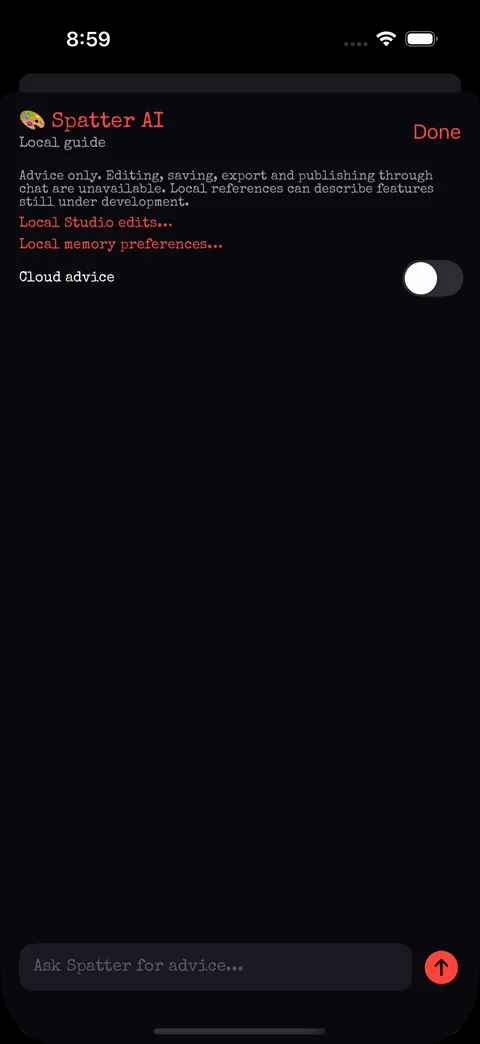
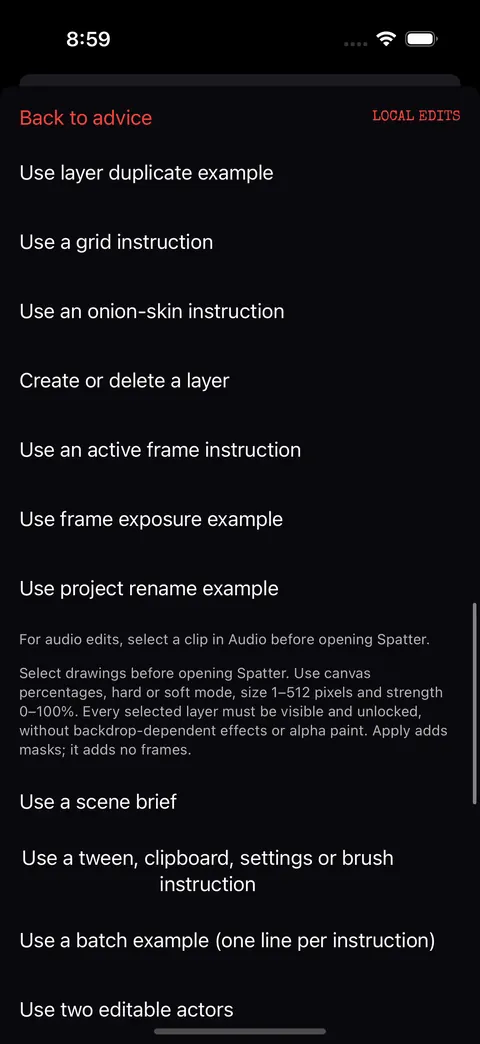
Spatter opens from the Studio menu. It answers from a local guide about the tool you are using, and it can run typed Studio operations, the same commands the app uses, as one undoable edit. Ask for a frame-range retime, a layer rename, an onion-skin change, a sound placement or a small stick-figure recipe, preview the plan, then apply it locally.

  • Local guide and local motion recipes work offline.
  • Every applied plan is a single Undo step; nothing is exported or published by Spatter.
  • Cloud advice is off until the owner configures a backend. The switch says so.
Spatter help topic →
  • Spatter AI panel in local-guide mode with the cloud advice switch off
    Spatter panelLocal guide, cloud off
  • Spatter advice list ending in a stick-figure example recipe and an Apply local edit button
    RecipesPreview plan, apply local edit

Export

Real files, with a receipt.

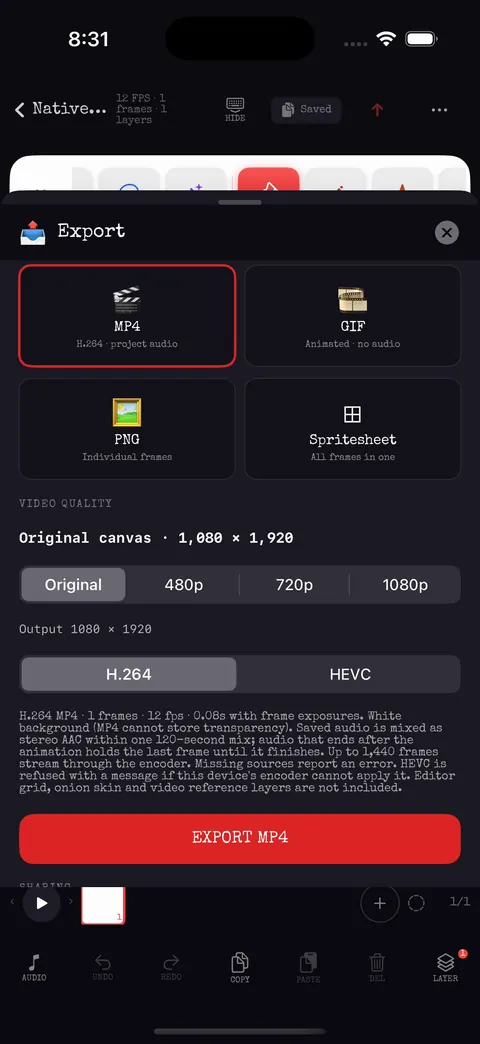
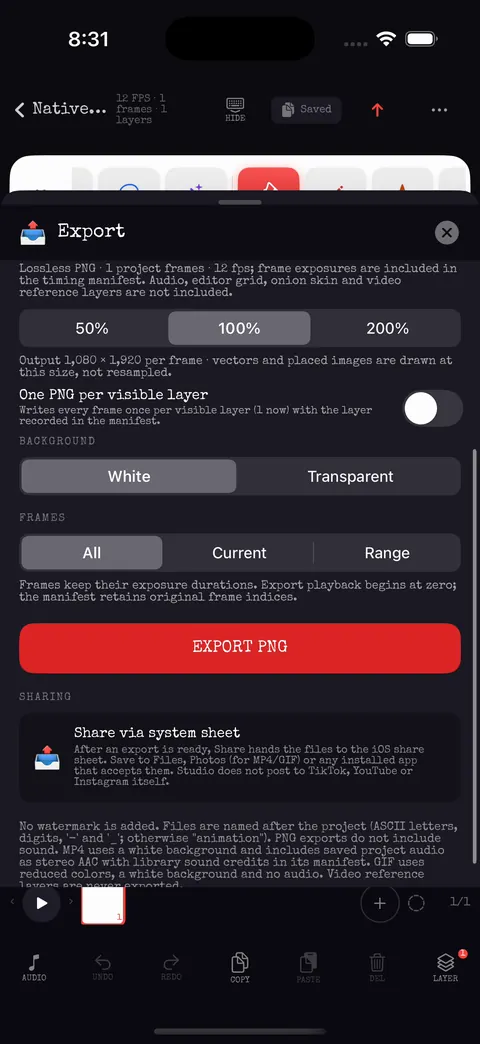
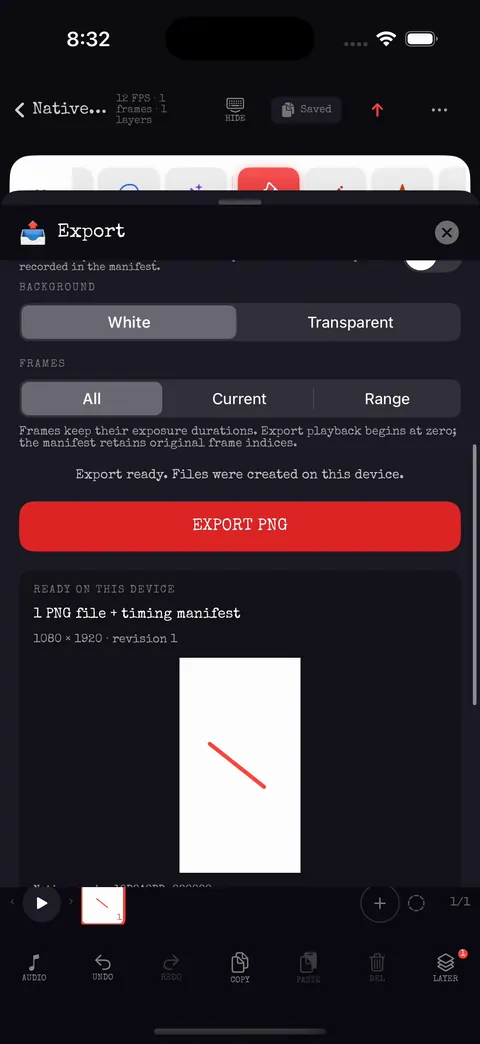
Export writes real files to your device and shows exactly what it made. MP4 uses H.264 or HEVC with the mixed stereo AAC soundtrack; GIF loops; PNG writes one file per frame or per visible layer; spritesheet packs every frame into one image. Each export carries a manifest with the source revision, timing and sound credits.

MP4

Video for anywhere.

Original, 480p, 720p or 1080p; H.264 or HEVC; mixed audio normalised to −1 dBFS on request. Verified after writing by decoding picture timing and audio loudness.

GIF

Loops forever.

Frame exposures are honoured; the file is decoded back and checked before it is offered.

PNG

Individual frames.

All, current or a range; white or transparent background; one PNG per visible layer if you want to composite elsewhere.

Spritesheet

All frames in one.

Every frame on one sheet with a timing manifest, ready for game engines and web players.

  • Export panel with MP4 selected, output size presets and H.264 or HEVC codec choice
    MP4Size, codec, mixed audio
  • Project library rendered at the largest accessibility text size with every control still reachable
    AccessibilityAudited at the largest text size

Exports never upload. Publishing to the feed or the official channel is a separate, consented step described on the Community page.